

What's on this page:
- What is Delegate Access?
- The 3 Roles Explained.
- How Executives Get Onboarded.
- How to Set Up Delegates in DSMN8.
- The Delegate Workflow: Day-to-Day.
- The Opt-Out Window: How Executive Review Works.
- What Delegates Can and Can’t Do on Behalf of Executives.
- Delegate Access and Personal Voice AI.
- Analytics and Reporting for Executive Influencers.
- Best Practices for Program Managers Using Delegate Access.
- Getting Started.
- Additional Resources.
If you’ve ever tried to get a senior executive consistently active on LinkedIn, you’ll know the pattern. Everyone agrees it’s valuable. The executive is supportive in principle. A few posts go out. Then competing priorities take over, and the account goes quiet.
It’s not a motivation problem. It’s a capacity problem. Executives at the level where their LinkedIn presence actually moves the needle are, almost by definition, too busy to maintain one without support.
DSMN8’s Delegate Access feature is built for exactly this situation. It lets a designated team member (typically in marketing, comms, or PR) manage an executive’s LinkedIn posting activity directly within DSMN8.
This guide covers everything you need to know about Delegate Access: what it does, how the roles work, how to set up executives and delegates, and how to manage your program.
What is Delegate Access?
Delegate Access is a feature within DSMN8 that lets trusted team members post to LinkedIn on behalf of senior executives, without password sharing or delegates gaining access to the executive’s private messages.
The executive connects their LinkedIn profile directly to DSMN8 through a secure, consent-based authorization.
From that point, assigned delegates can create, schedule, and publish content on their behalf entirely within the platform.
Every action is logged, and the executive chooses how much review control they want. It takes just a few minutes to set up.
For many organizations, Delegate Access is what makes an executive LinkedIn strategy actually sustainable. The intention is usually there. The time isn’t.
Watch the video below for a brief explainer:
The 3 Roles Explained
1. Program Admin
This individual manages the program overall. They are responsible for adding executives and delegates, assigning who has access to which accounts, and monitoring activity across the program.
We recommended that between one and three people hold this role, working closely together to maintain consistency. In smaller programs, one person can manage this. In large multi-region enterprises, more than one person is often needed.
Check out our full guide to employee advocacy program governance to learn more about roles.
2. Executive Influencer
These are your senior leaders whose LinkedIn accounts are being managed. They connect their profile once, choose their level of review involvement, and can log in at any time to see what’s been posted on their behalf. In practice, many Executive Influencers don’t regularly return to the platform after onboarding. The whole point is that they don’t need to.
3. Delegate
These are team members who handle the day-to-day work: creating posts, scheduling content, and managing the executive’s DSMN8 activity, such as engaging with Boost Posts. A single executive can have up to five delegates, though we recommend 1 per executive. An organization can have up to ten delegates in total.
A DSMN8 user cannot be both an Executive Influencer and a Delegate.
How Executives Get Onboarded
Executives receive an email invitation to join the Delegate Access program.
The setup flow depends on whether they’re already a DSMN8 user.
For existing DSMN8 users: they open the invitation, accept the Access Control Agreement, and optionally enable the 24-hour opt-out window.
For new users: they open the invitation, create their DSMN8 account, connect their LinkedIn profile, accept the Access Control Agreement, and optionally enable the opt-out window. The program admin can pre-populate the invite with the executive’s name, email, and job title to make this as frictionless as possible.
Once onboarding is complete, the program admin gains full access to manage the executive’s DSMN8 account. The executive doesn’t need to log in again unless they want to.
If an executive declines the invitation, they’re still enrolled on DSMN8 as a standard user and can receive curated content to share themselves.
How to Set Up Delegates in DSMN8
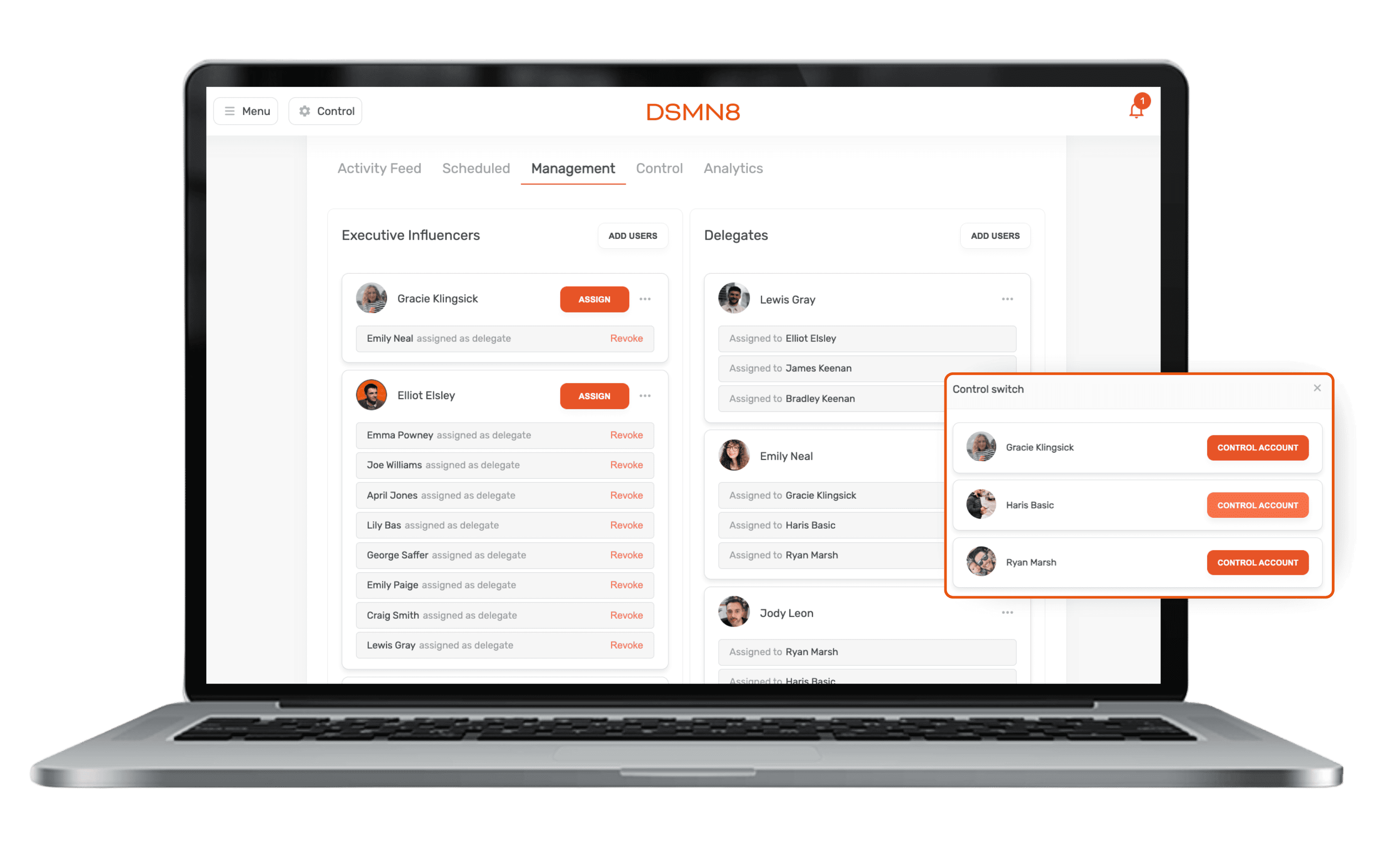
From the Management Tab in DSMN8, the Program Admin can add delegates, add executives, and assign them to each other.
Adding Executive Influencers: Either select existing DSMN8 users via “Add Users” above the Executive Influencer list, or use “Invite New User” to onboard someone new to the platform directly as an Executive Influencer.
Assigning delegates to executives: Click “Assign” next to the relevant executive, select the delegate from the list, and confirm. The Management Tab then shows each delegate paired with their assigned executive, giving a clear view of who is managing each account.
Removing access: Click “Revoke” to remove a delegate’s access to a specific executive. Use “Remove Delegate” to remove them from the program entirely. This should be built into your offboarding process for any team member or agency who previously held delegate access.
The Delegate Workflow: Day-to-Day
Delegates access the feature by clicking the Control button in the DSMN8 header menu. From there, they select which executive they’re managing. For delegates handling multiple executives, the Switch Account option in the menu under their profile picture makes it easy to toggle between accounts.
DSMN8 always displays a reminder of which executive account the delegate is currently managing, and requires confirmation before any content is shared, to prevent accidental posting from the wrong profile.
Within the executive’s account, delegates have access to:
The Opt-Out Window: How Executive Review Works
Executives can enable a 24-hour opt-out window when they join the program, or change this setting at any time.
When active, scheduled posts are held before publishing, and the executive receives an email notification with four options:
- Cancel Post — removes the post entirely (no login required)
- Post Now — publishes immediately (no login required)
- Edit Post — opens the scheduled post in DSMN8 for editing (login required)
- View all shared content — opens the Activity Log (login required)
If the executive takes no action within 24 hours, the post publishes automatically.
This is designed to give executives visibility and a right of review without requiring them to be in the platform day-to-day.
The cancel and post now actions don’t require a login at all, which keeps the barrier low for busy executives.
Some delegate actions fall outside the opt-out review entirely. Executives are not notified when delegates: like or reshare Boost Posts, leave internal likes/ comments, or join teams and groups. These actions happen automatically to keep the program running without requiring executive sign-off on every minor engagement.
What Delegates Can and Can't Do on Behalf of Executives
For clarity, here’s a quick summary:
✅ Delegates can: create and schedule posts, share content on the executive’s behalf (personal posts and standard shares), like and reshare Boost Posts, make internal likes and comments, join teams and groups, and adjust account settings.
❌ Delegates cannot: set up auto-scheduling for the executive, access the executive’s LinkedIn DMs, or appear in gamification leaderboards on the executive’s behalf.
On gamification: Executive Influencers are automatically excluded from leaderboards and competitive features. Since a delegate is performing the activity, including the executive in gamification alongside active regular users wouldn’t be meaningful or fair. Admins can reinstate executives into gamification if there’s a specific reason to do so.
Delegate Access and Personal Voice AI
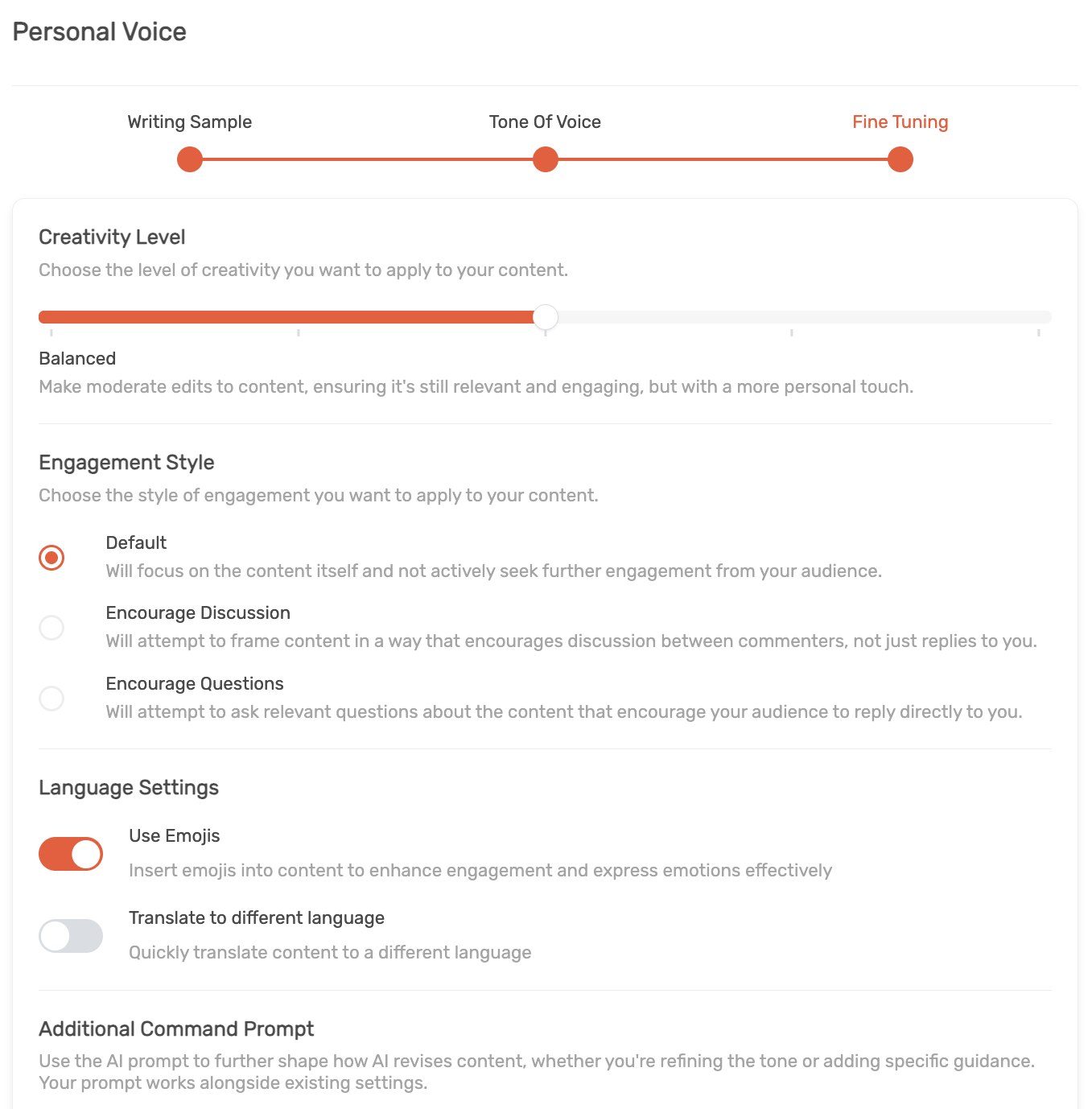
DSMN8’s Personal Voice AI generates post captions in a user’s individual writing style, trained on their LinkedIn posting history. Delegates can apply an executive’s Personal Voice when drafting content on their behalf, meaning posts read as if the executive wrote them, not the content team.
We strongly recommend setting up Personal Voice AI with your executive. When posts are provided to leaders in their natural style/tone, they’re much less likely to reject or edit them. This streamlines your workflow further.
Read the Personal Voice AI best practices guide to learn more.
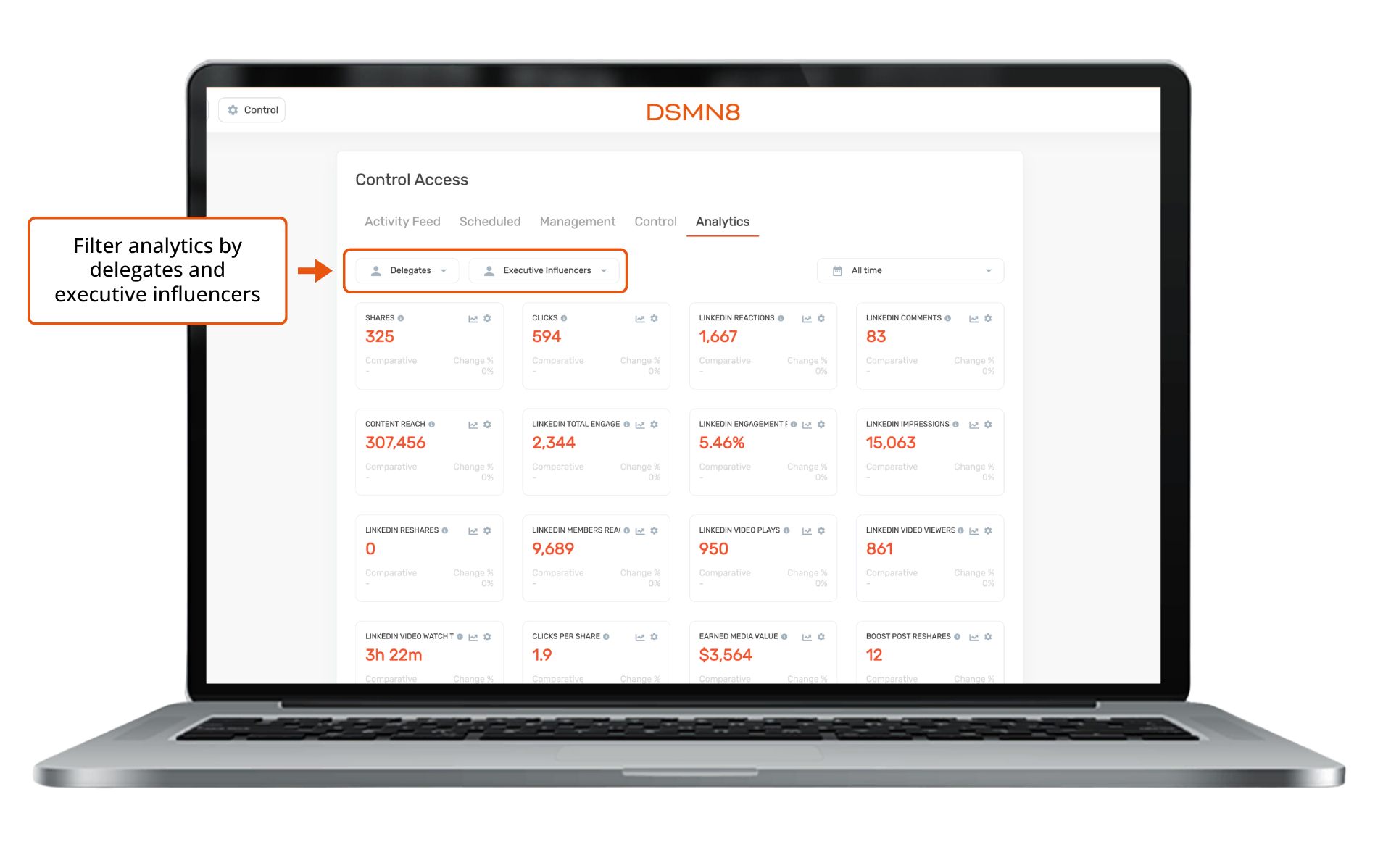
Analytics and Reporting for Executive Influencers
The Analytics Tab in the Delegate Access dashboard gives program managers an overview of executive activity across the program. Metrics include: top content by shares, top content by clicks, top users by shares, and top users by clicks.
Delegates see analytics for the executives they manage. The Program Admin sees analytics across all executives and delegates in the program. These data points mirror DSMN8’s standard analytics dashboard, so the view will be familiar to anyone already using the platform.
Executive activity also feeds into DSMN8’s main analytics suite alongside the wider employee advocacy program, giving you a holistic view of how executive content performs relative to the broader team.
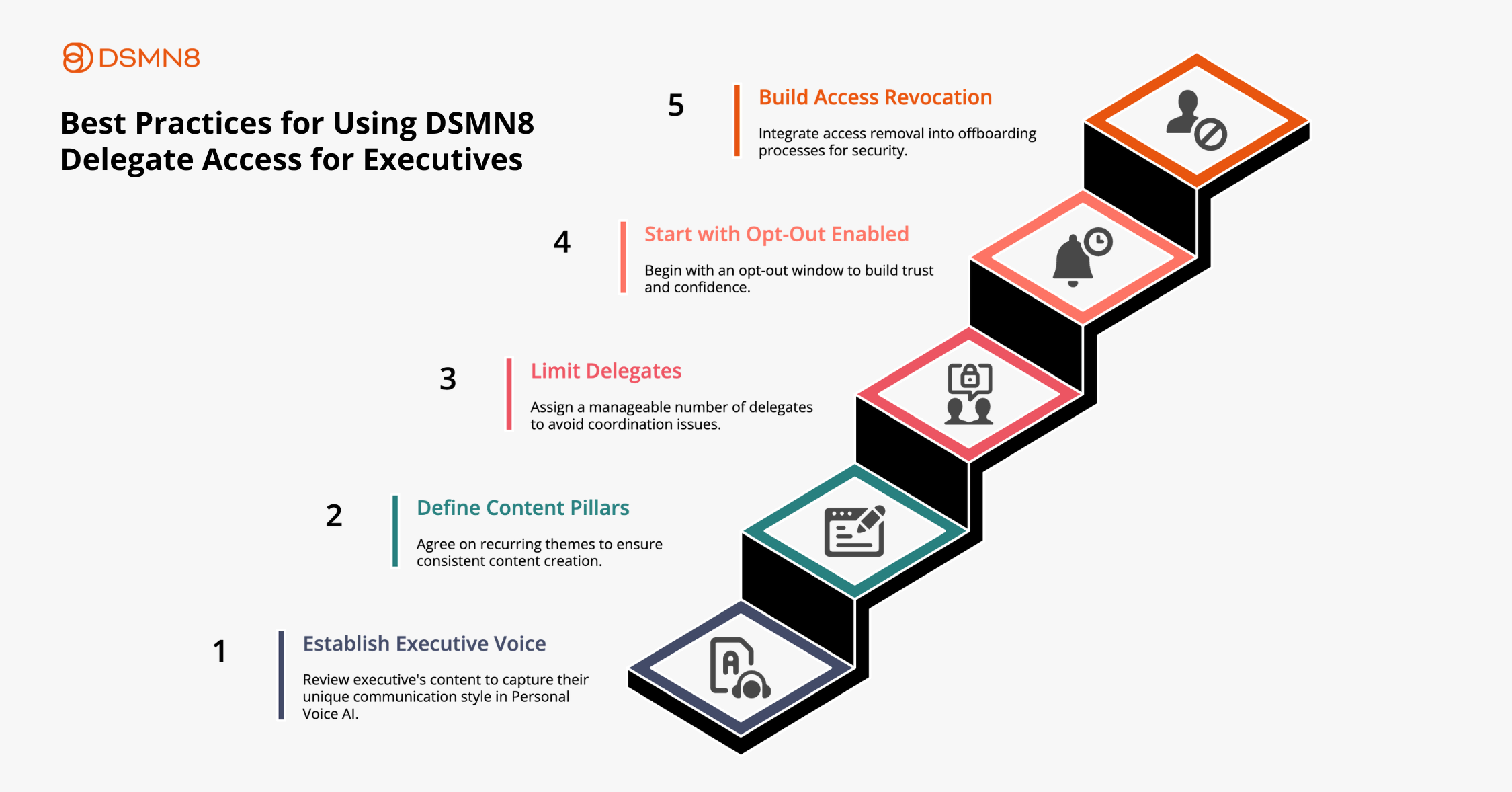
Best Practices for Program Managers Using Delegate Access
1. Establish the executive's voice before going live.
The biggest challenge in creating content for executives is making it sound right.
Before drafting the first post, review the executive’s existing LinkedIn activity, listen to how they communicate in recordings or interviews, and note the phrases and references they use naturally. Use these insights to create their Personal Voice.
Time spent on this upfront saves significant editing later.
2. Define content pillars.
Agree with the executive on three to four recurring themes, such as industry commentary, company vision, and team culture. This makes delegate content creation faster and keeps the account consistent over time. Your leaders shouldn’t be sharing identical content to your marketing and sales teams.
3. Avoid assigning too many delegates to one executive.
Up to five delegates can be assigned to a single executive, but more isn’t always better. If delegates aren’t tightly coordinating, you can end up with inconsistent content or actions happening simultaneously. One or two active delegates per executive is usually enough.
4. Start with the opt-out window active.
For new programs, this gives the executive visibility and confidence while the team establishes a working content rhythm. Once both sides are comfortable, you can discuss switching to direct publishing.
5. Build access revocation into offboarding.
When someone leaves the team or an agency relationship ends, remove their delegate access. Every action is logged against the user who performed it, which protects the program and supports any future audit.
Watch the short demo video below to see more of DSMN8’s Executive Influencer Solution:
Getting Started
Delegate Access is one of DSMN8’s Executive Influencer features.
If you’re an existing DSMN8 client looking to set up Delegate Access, reach out to your Customer Success Manager.
New to DSMN8? Book a demo to see the platform in action.
Wondering how active your executives are and how this compares with your competitors?
Additional Resources
- The Executive Voice: platform-wide data on how delegate-created content performs compared to self-authored executive posts.
- The Executive Voice: Report Key Findings, the free write-up of those findings, including the posting-pace and content-format data.
- Executive Social Media Security: Guide to Safe Delegation.
- The CEO Content Framework for LinkedIn Thought Leadership: structuring what an executive actually posts.
- CEO Personal Branding Guide for Marketing and Comms Teams: building the strategy behind the execution.
- Executive LinkedIn Playbook: Zero to Visible Leadership Brand in 30 Days.

Emily Neal
Emily is SEO Lead at DSMN8. She focuses on organic growth strategy across search and AI search and co-authors DSMN8's original research, including the Employee Advocacy Benchmark Report and edited CEO Bradley Keenan's book. Her background spans SEO strategy, technical web, long-form content, digital PR, and marketing automation.